Welcome to WordPress. This is your first post. Edit or delete it, then start writing!
Our Radios
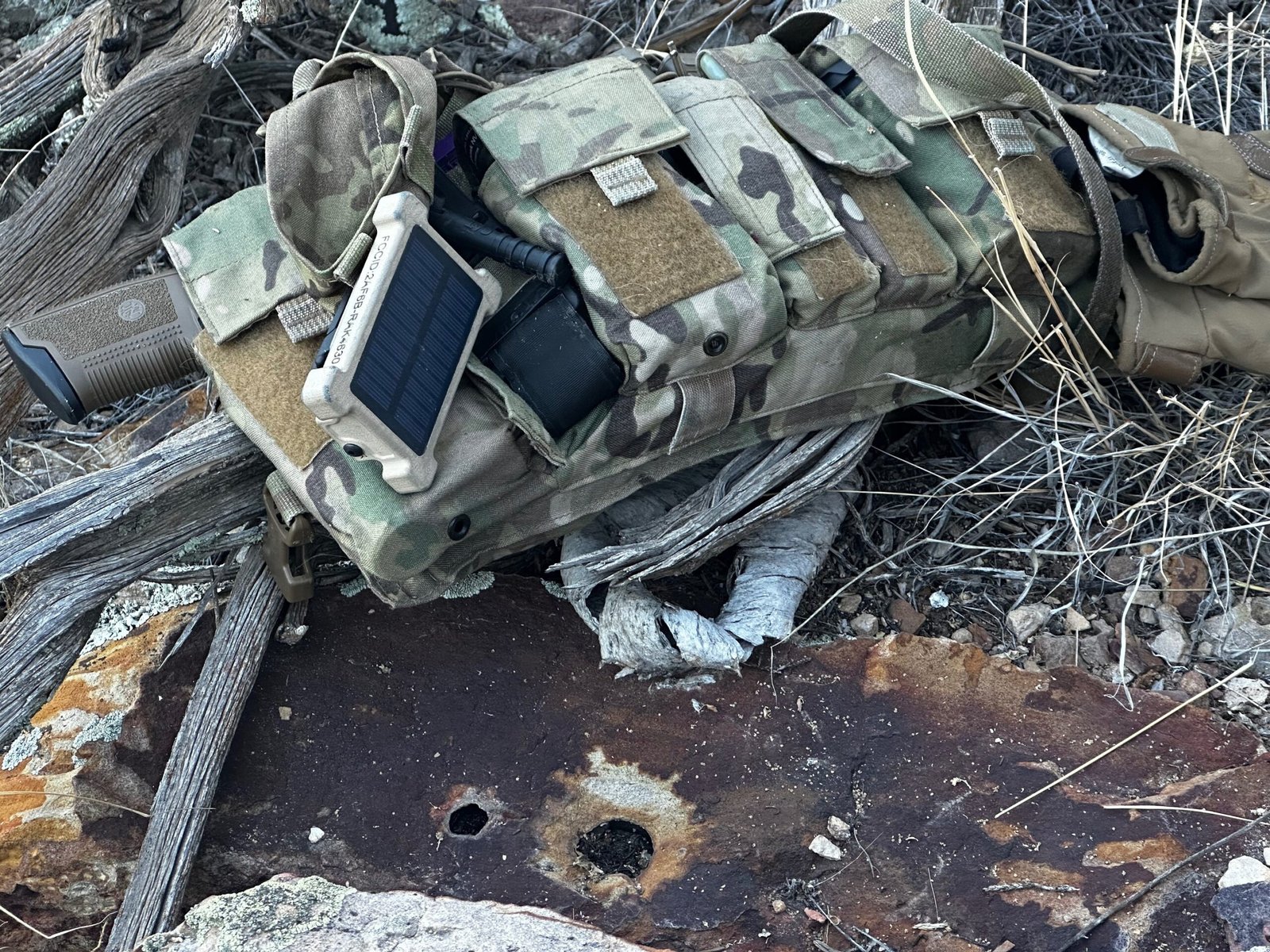
Lets talk about these fancy little buddies for a bit. Why do you want one? Need one? Obsess over one?
In any conflict, be it an armed encounter with the lawless death of your civilization or the race against time to save a lost hiker from the elements, communication is essential.
Maybe your PRC-152 ate shit, maybe your Baofengs shouldn’t have been exposed to THAT much water, and maybe you need a repeater to get where you are going…the HAMMR TypeX Text Messaging radios are the answer to your needs.
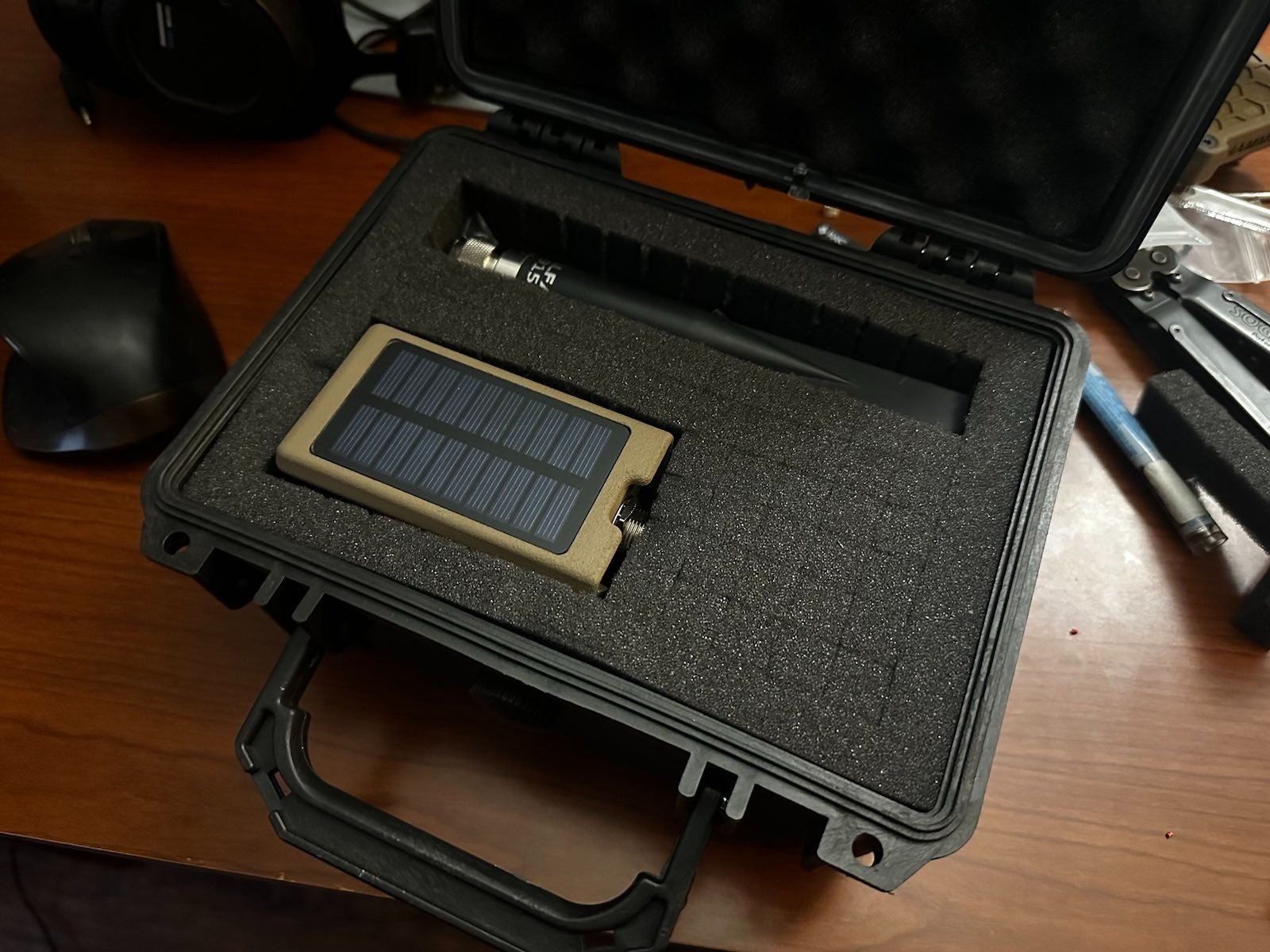
Text Only
Pair the Meshtastic app on your phone to our radios for a secure commo experience that closely resembles your regular text messaging over cell networks, but entirely off-grid.
Encrypted with AES256
Messages are encrypted with AES256 pre-shared keys that you can configure and share directly from the app.
Frequency Hopping – Spread Spectrum
Nothing is foolproof in the RF game, but the FHSS mechanisms used by the TypeX radios are some of the best in the industry when it comes to resisting jamming and Radio Direction Finding (RDF).
How do I use these?
Getting Started
-
Quit drinking for at least an hour man. An hour…thats all we are asking.
-
Open the app on your phone. It’s the icon on the left next to Friendship Bob’s head.
Connect to a Radio
-
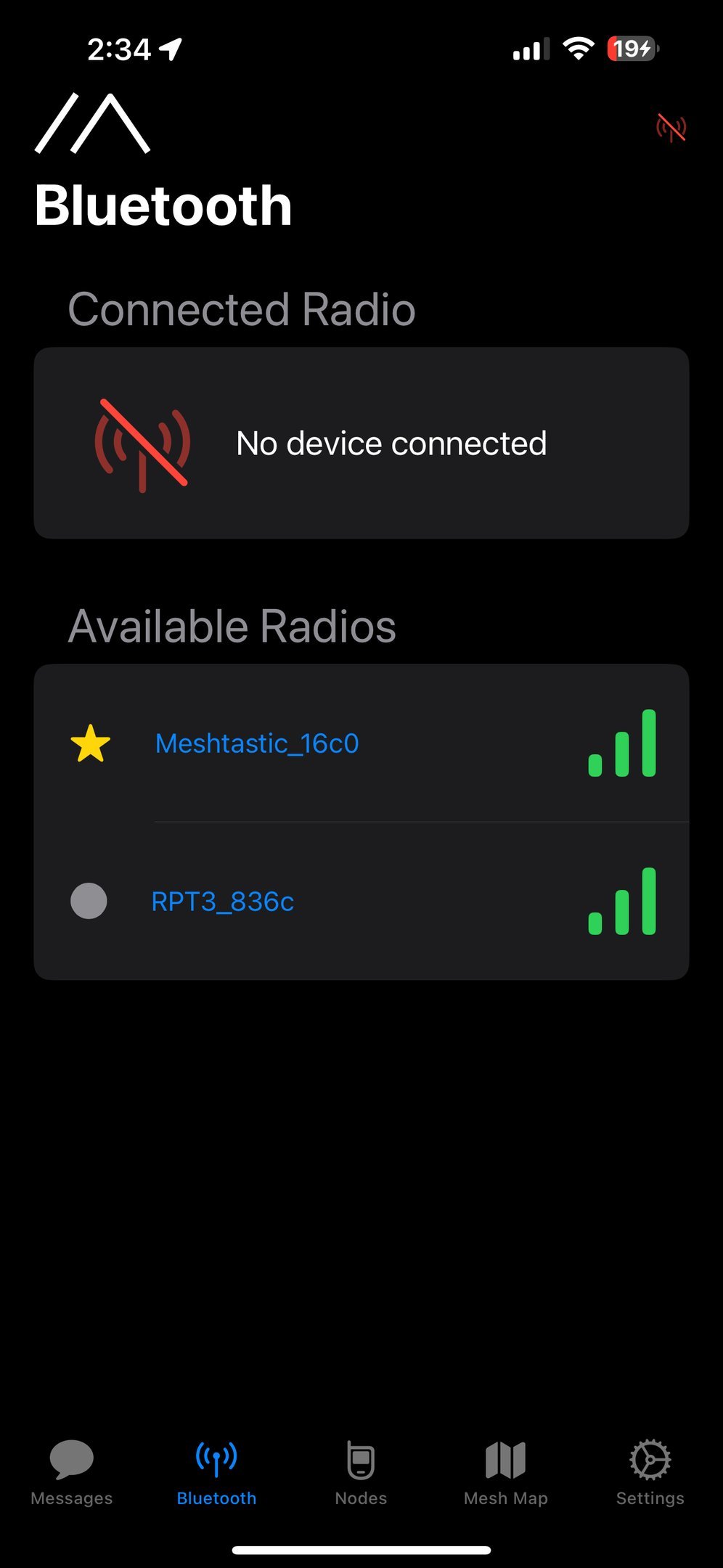
Connect to your new TypeX radio.
-
If it asks for a password, it’s 123456. You can change it later, but it’s easy to remember since it’s the same combination on your luggage.
Set your Region
-
Bet you wish you had that 18E sat there still.
-
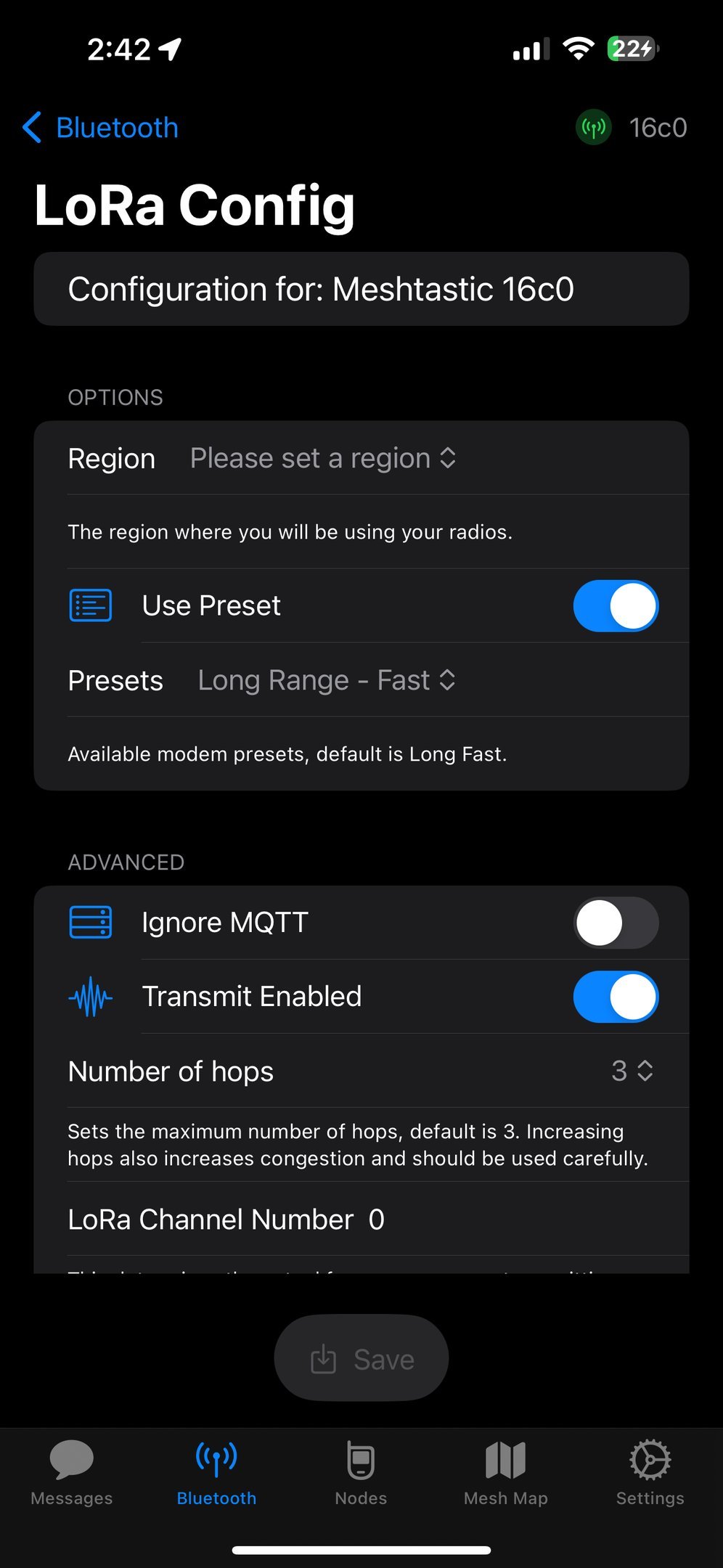
Click on Set LoRa Region, and pick your region.
-
Our radios only work in the US unless you special order them for other regions. If you set a different region, chances are your radio will still work but it will perform like crap because the power will be reduced.
-
The radio will reboot and come back up on the right region.
-
IF YOU HAVE A TYPE1, YOU CAN TURN ON THE TRANSMITTER AFTER INSTALLING THE ANTENNA! CLICK TRANSMIT ENABLED!
Rock your Callsign
-
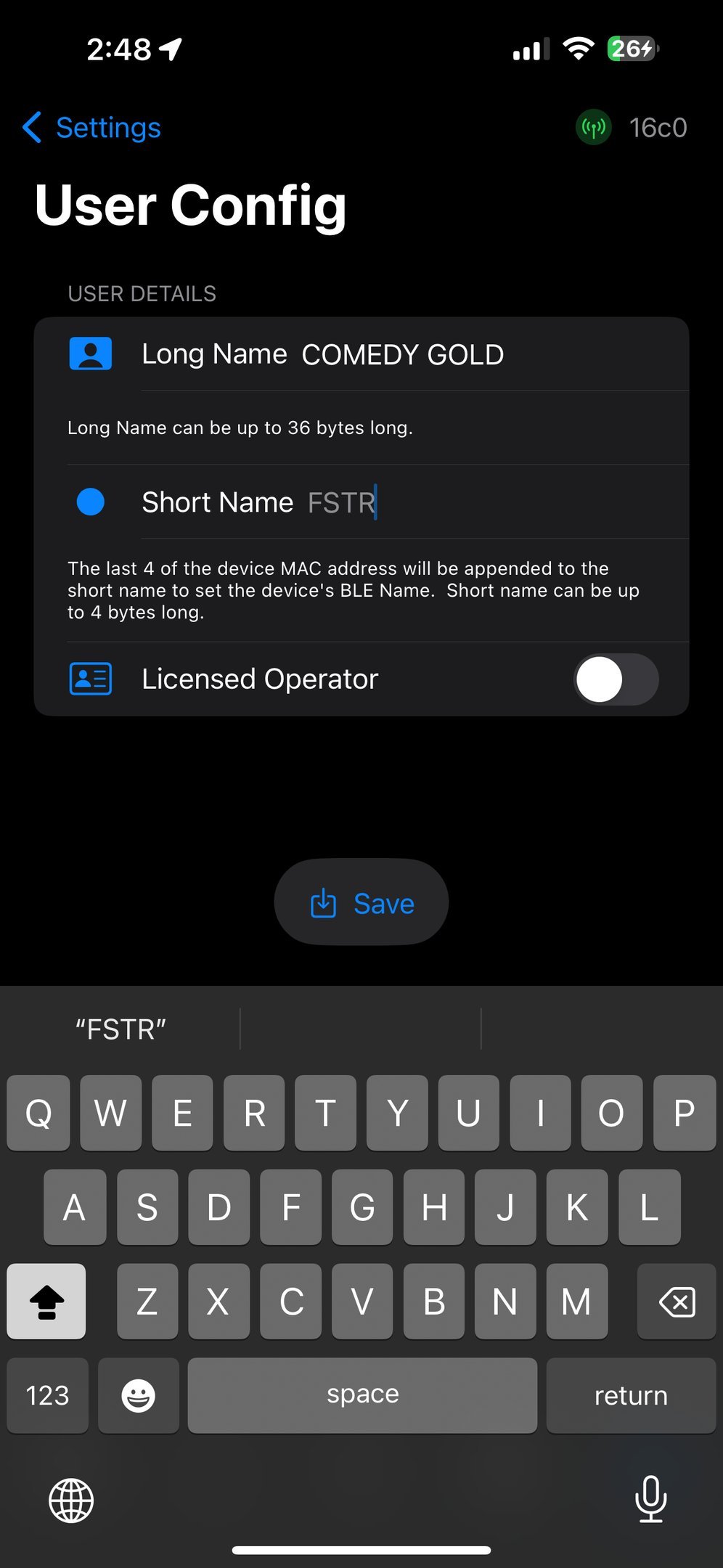
Click on Settings
-
Go to User.
-
Change the long and short names to something you like and hit Save.
-
RADIO REBOOTS AGAIN.
Move to the next Task. You are up and running.
Once you are done here, you can move on to the Using GPS and Setting Up a Mesh Topics.
How do I use these (Android)?
Getting Started
-
Quit drinking for at least an hour man. An hour…thats all we are asking.
-
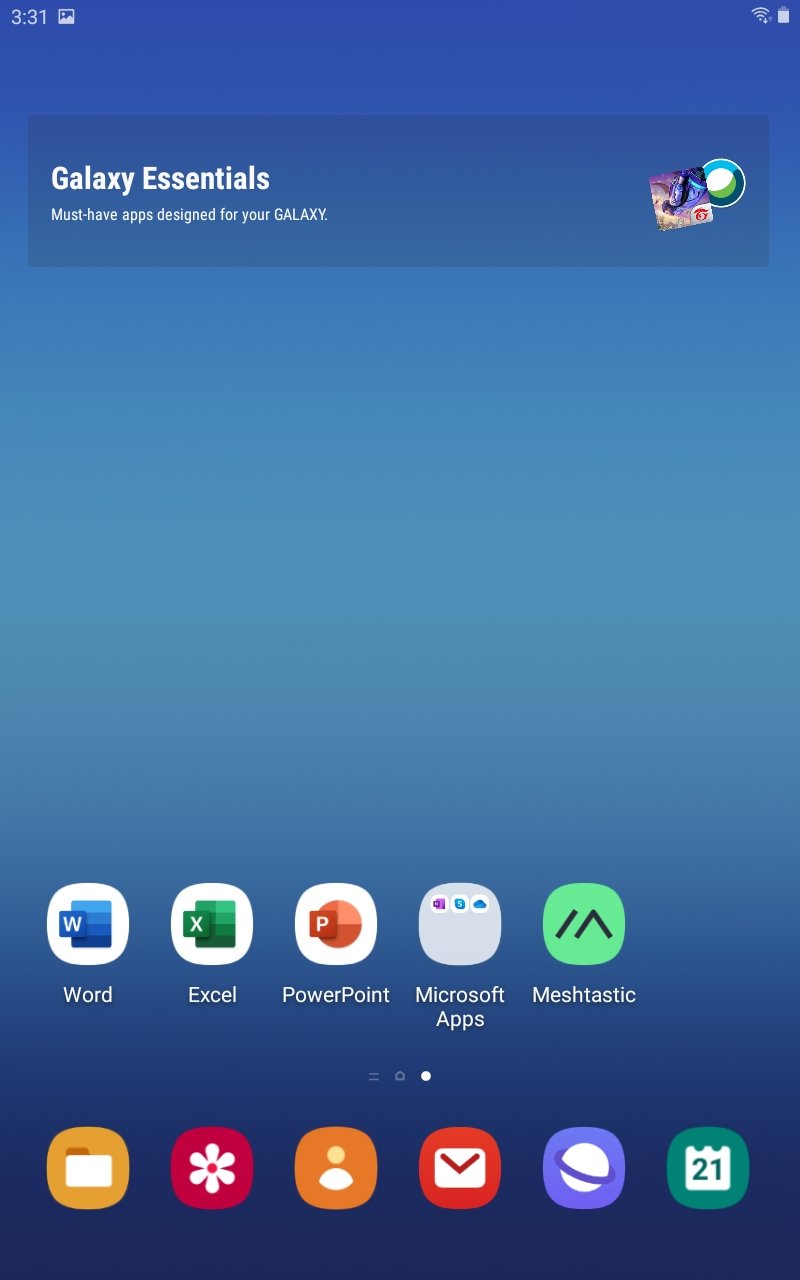
Open the app on your phone. It’s the green icon down below.
Connect to a Radio
-
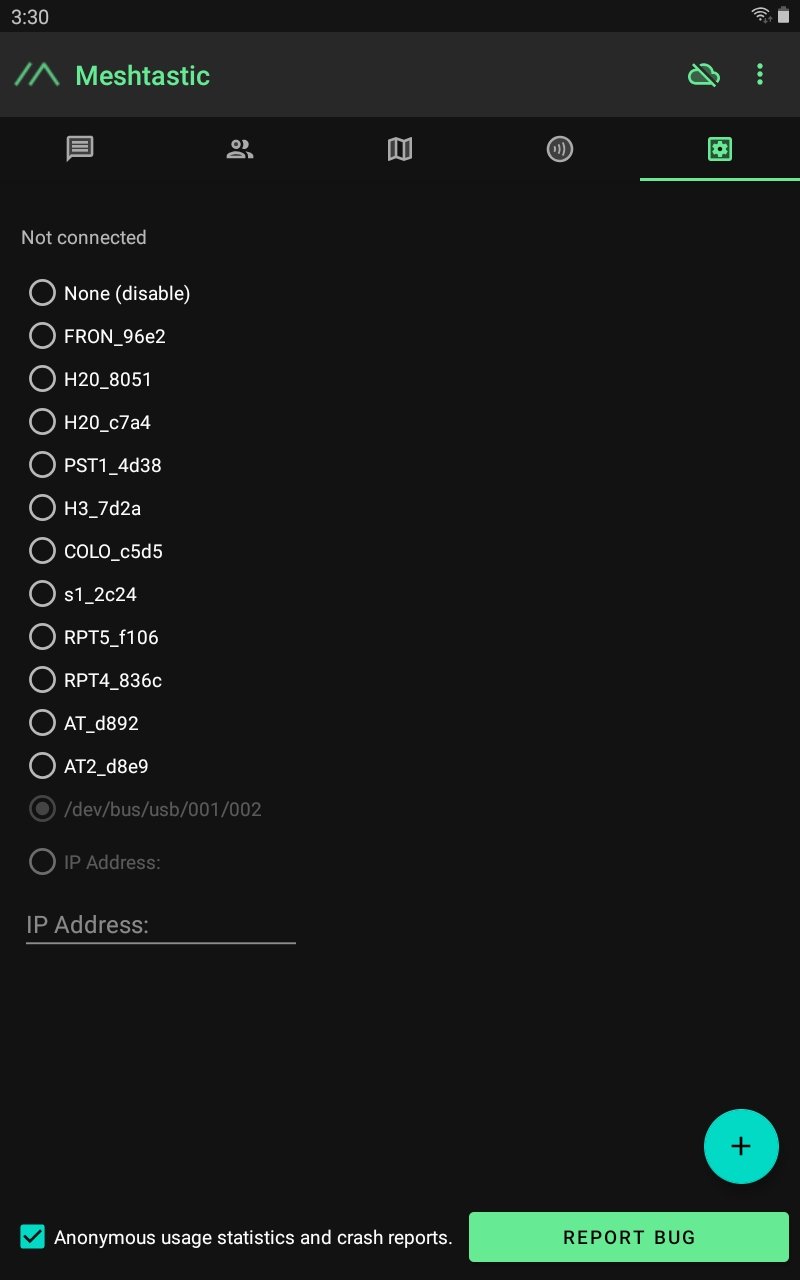
Connect to your new TypeX radio by going to the top right tab that looks like a gear in a box. For some reason.
-
If it asks for a password, it’s 123456. You can change it later, but it’s easy to remember since it’s the same combination on your luggage.
Set your Region
-
Bet you wish you had that 18E sat there still.
-
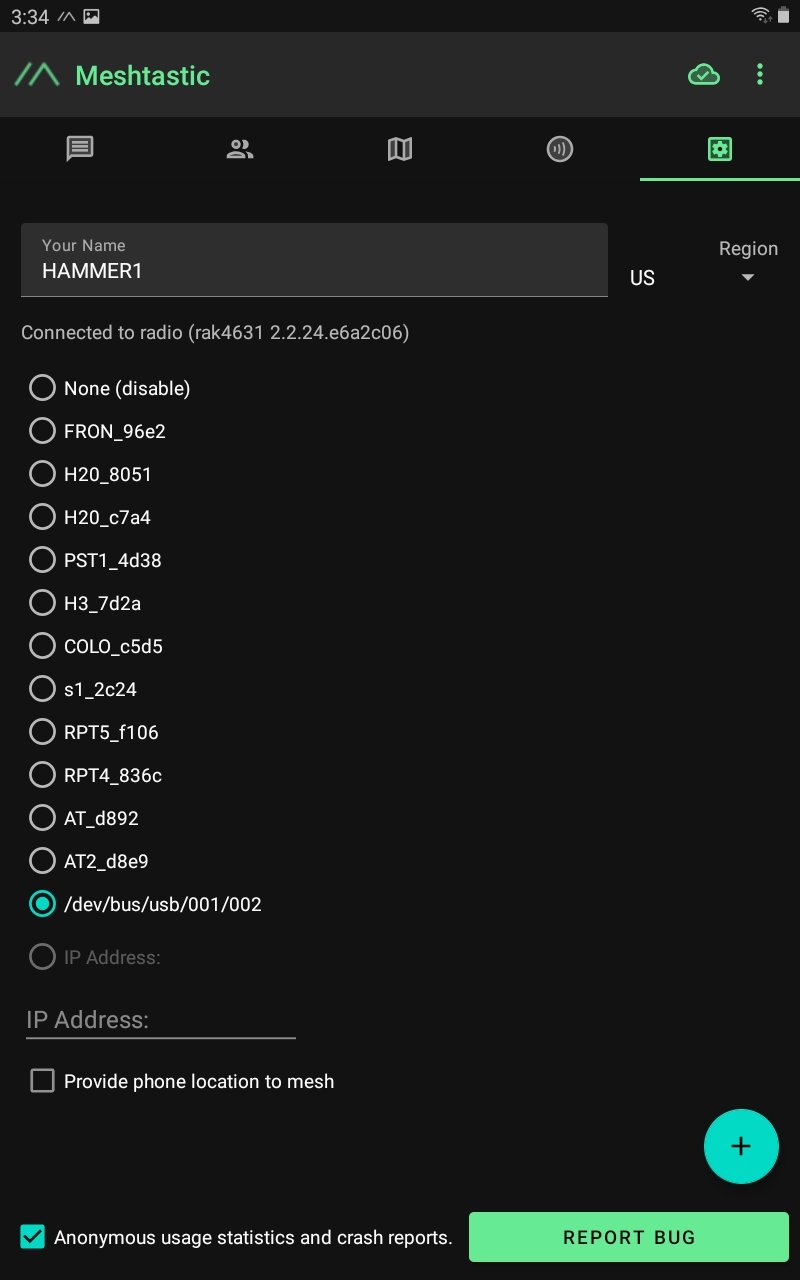
Click on the region drop down next to the radio name and select US.
-
Our radios only work in the US unless you special order them for other regions. If you set a different region, chances are your radio will still work but it will perform like crap because the power will be reduced.
-
The radio will reboot and come back up on the right region.
-
IF YOU HAVE A TYPE1, YOU CAN TURN ON THE TRANSMITTER AFTER INSTALLING THE ANTENNA! CLICK TRANSMIT ENABLED!
Rock your Callsign
-
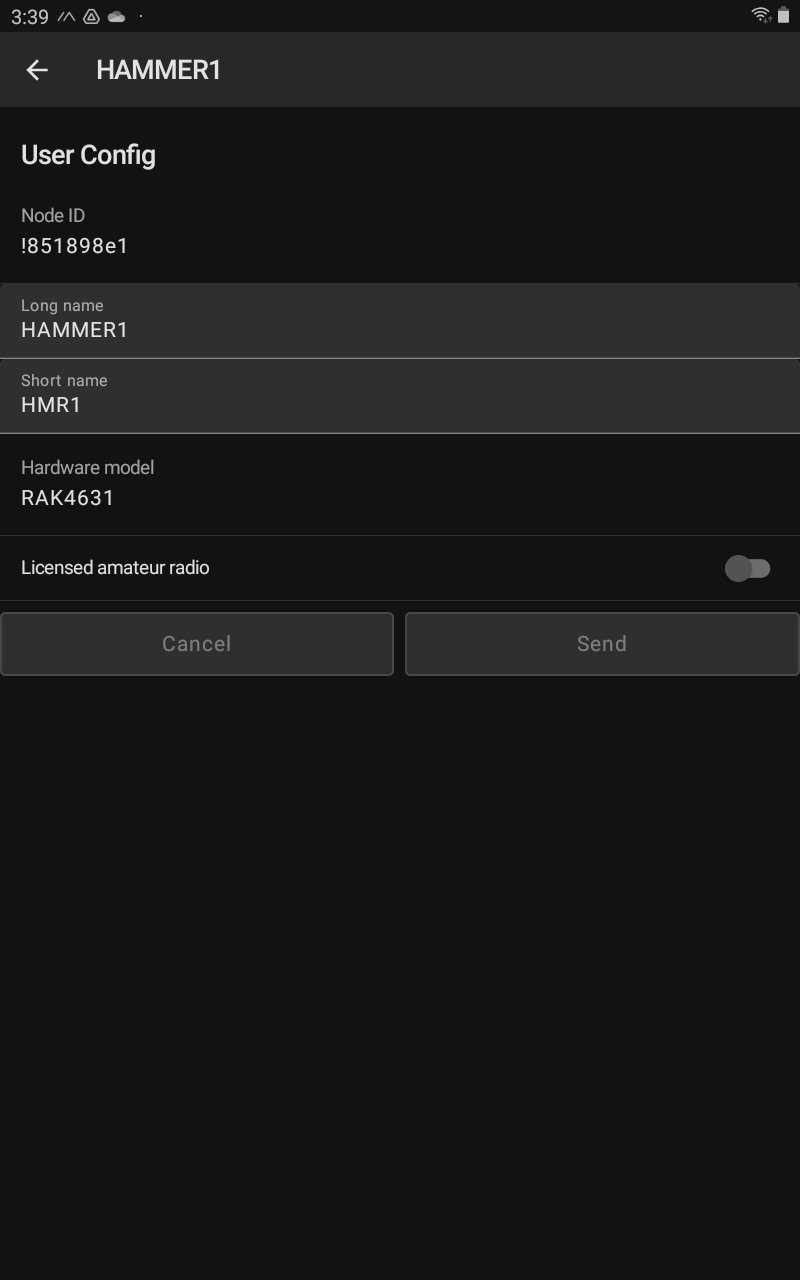
Click on the three downwards dots button at the top right of the screen and select Radio Configuration.
-
Go to User.
-
Change the long and short names to something you like and hit Save.
-
RADIO REBOOTS AGAIN.
Move to the next Task. You are up and running.
Once you are done here, you can move on to the Using GPS and Setting Up a Mesh Topics.
What Apps do I need?
Alright – so you are gonna need the good stuff to make our radios work. Meshtastic.
Check out these download links – you can click on them or use your camera or whatever to open these App Store pages and get stuff installed.
The same apps run all of our radios with the exception of the Archon 7 Nuclear Weapon Trigger. That one runs on firmware from the 80’s. We will mail you a mainframe tape.
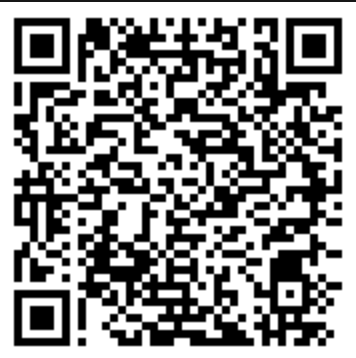
If you want to stay clean of tracking STD’s, you can also download apps for the Android system from Github. Click on a release you like, expand the “Assets” tab, and download the apk you need.

IPHONE
ANDROID
And finally, for the ATAK crowd, you need the ATAK Plugin.
Setting up your Mesh
Considerations
When setting up your Mesh, its important to follow a few guidelines.
-
Node announcements happen on the Primary Channel. So you can’t DM someone you don’t have on your Primary Channel.
-
Location is shared on your Primary Channel.
-
All the cool stuff = Primary Channel….BUT
-
Secondary channels let you talk to other groups of people.
-
The radio comes with a secondary channel that is shared among all TypeX users if you choose not to delete it.
The Primary Channel
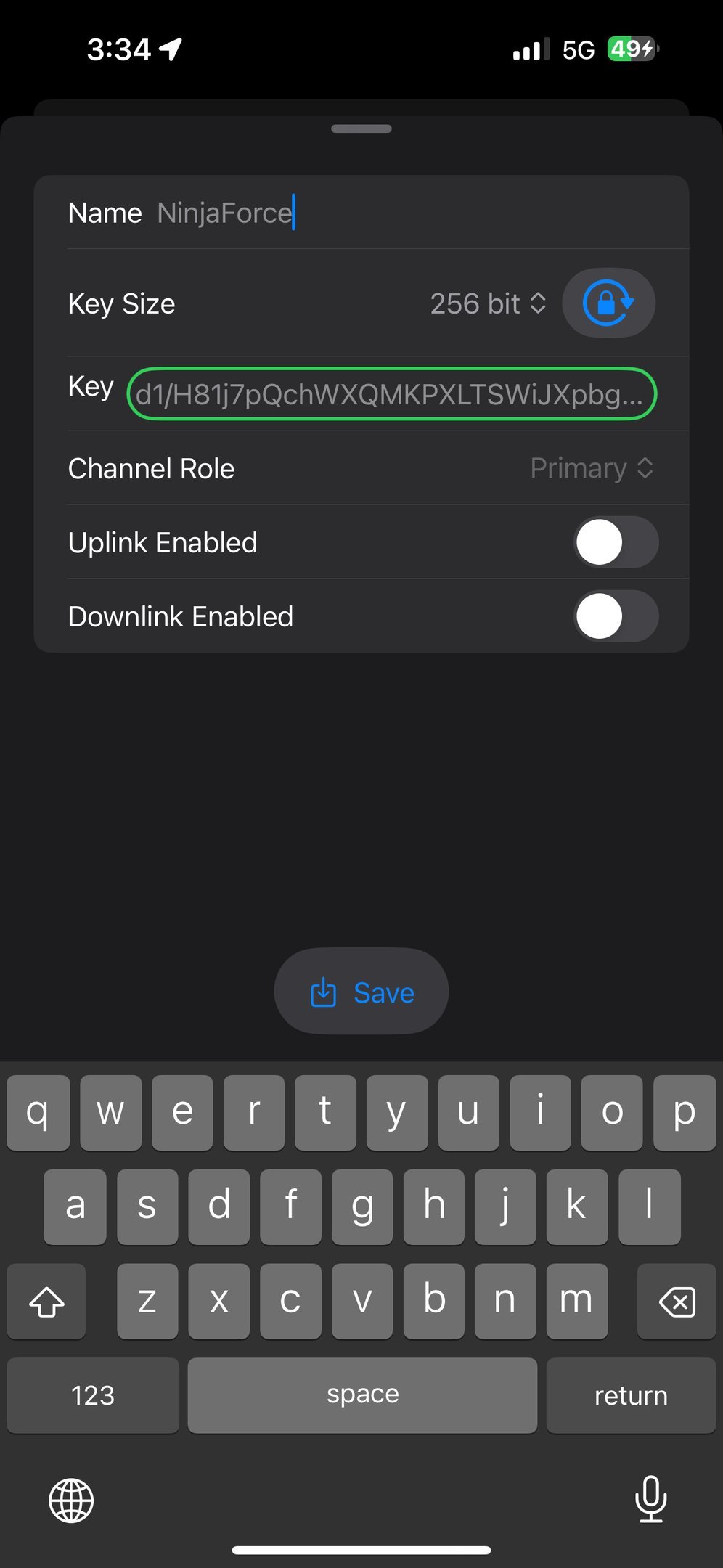
This is the channel for your company/family/group.
-
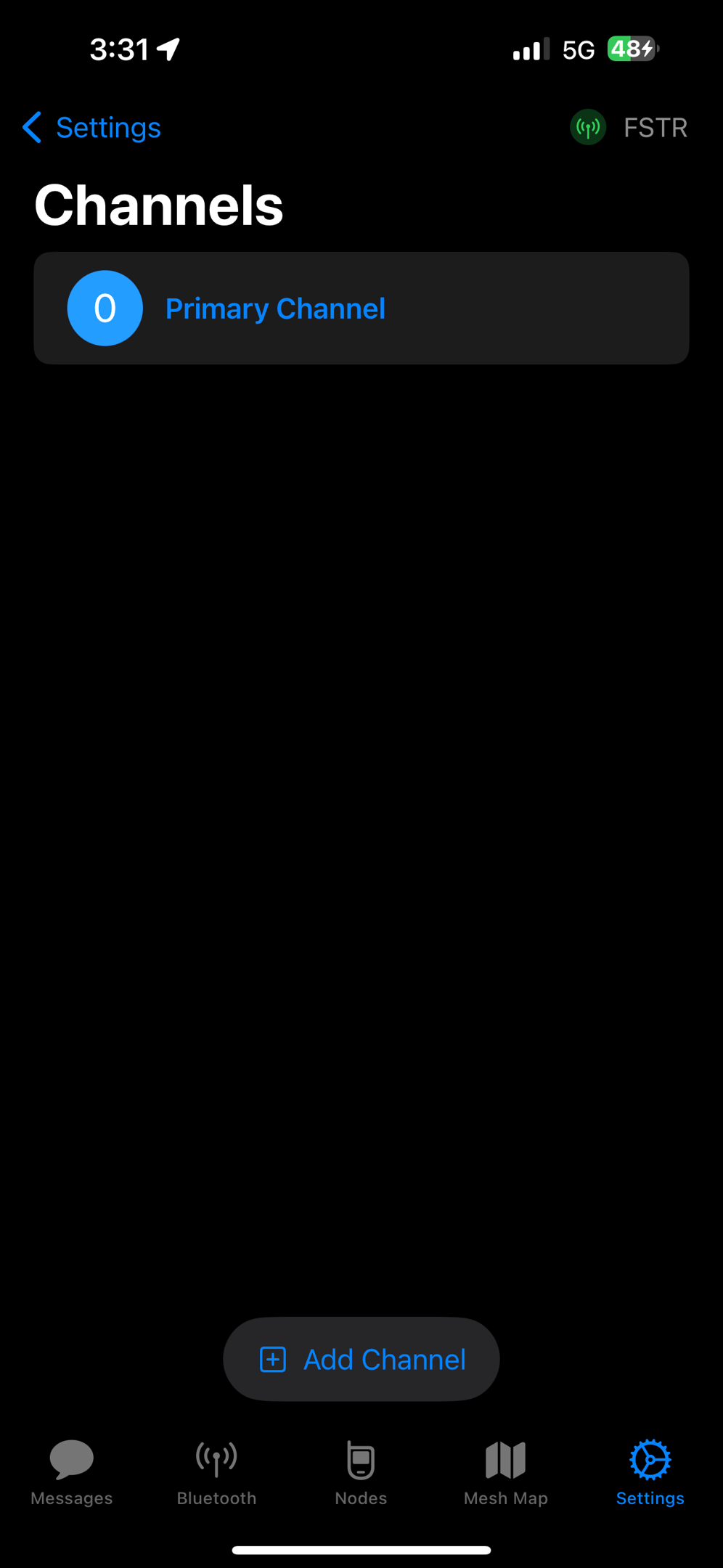
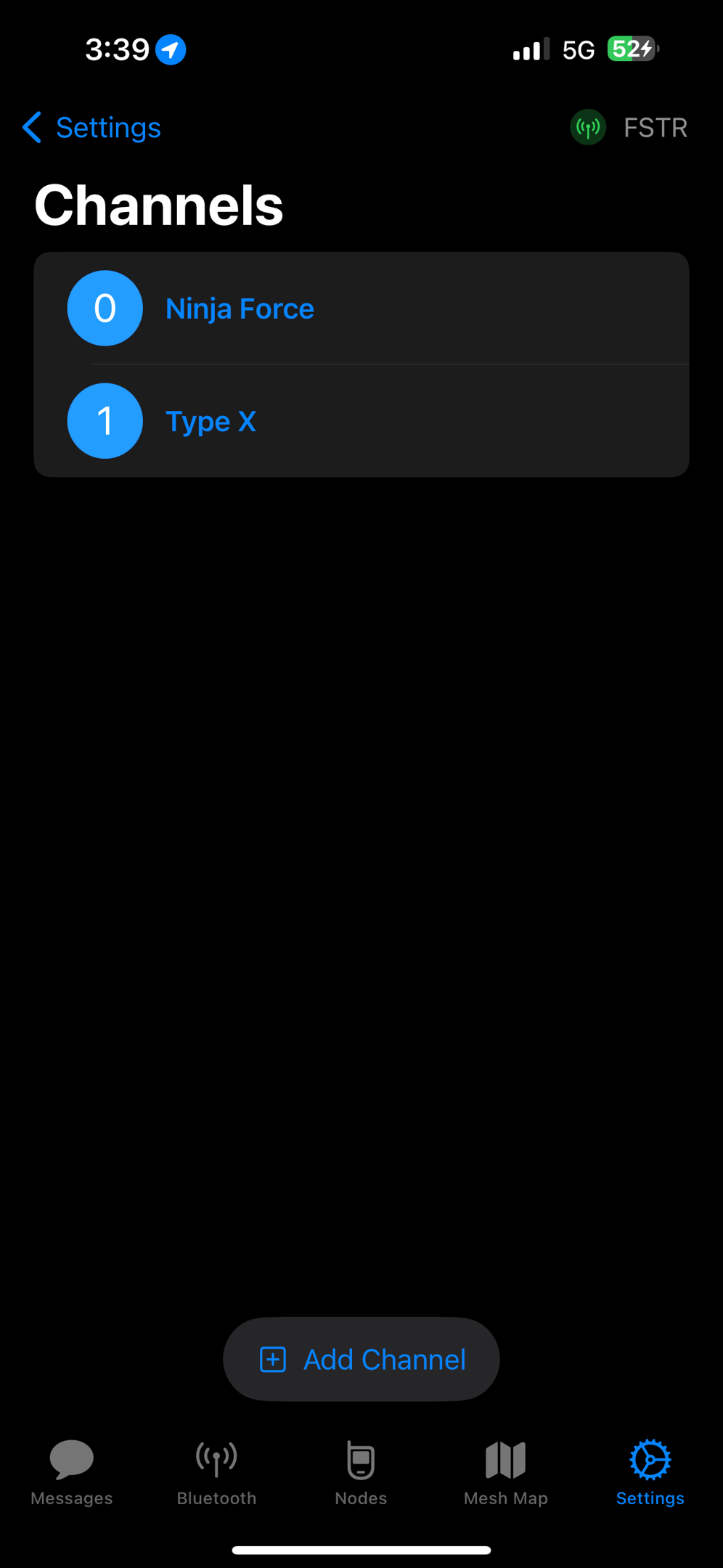
Settings -> Channels
-
Set Key Size to 256 bit
-
Click the Key Refresh Lock
-
Save
Secondary Channels
-
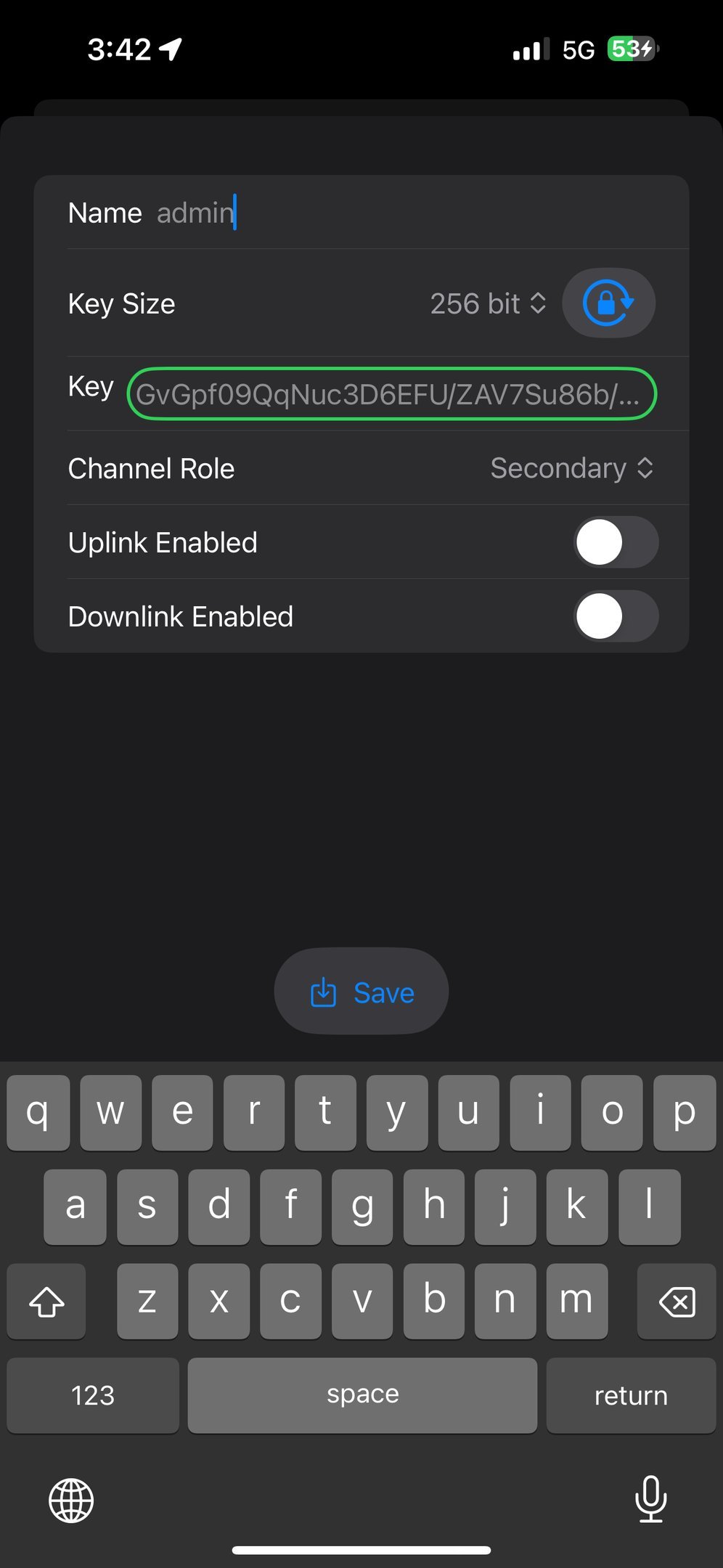
Same process, but select Secondary.
-
If you want to configure the TypeX Users channel, its name is TypeX. Its key is: LSkRrUoisSk8dvtPQGRDqi2PohPz5ttTyyl/qmgjovQ=
The Admin Channel
-
You can also configure an encrypted channel called “admin”.
-
If this channel is configured, you can administer other nodes that have the same channel and crypto key.
-
This can be very useful for changing settings on distant repeaters and on units you want to change in the field.
-
More admin features are released every day.
Sharing Channels
-
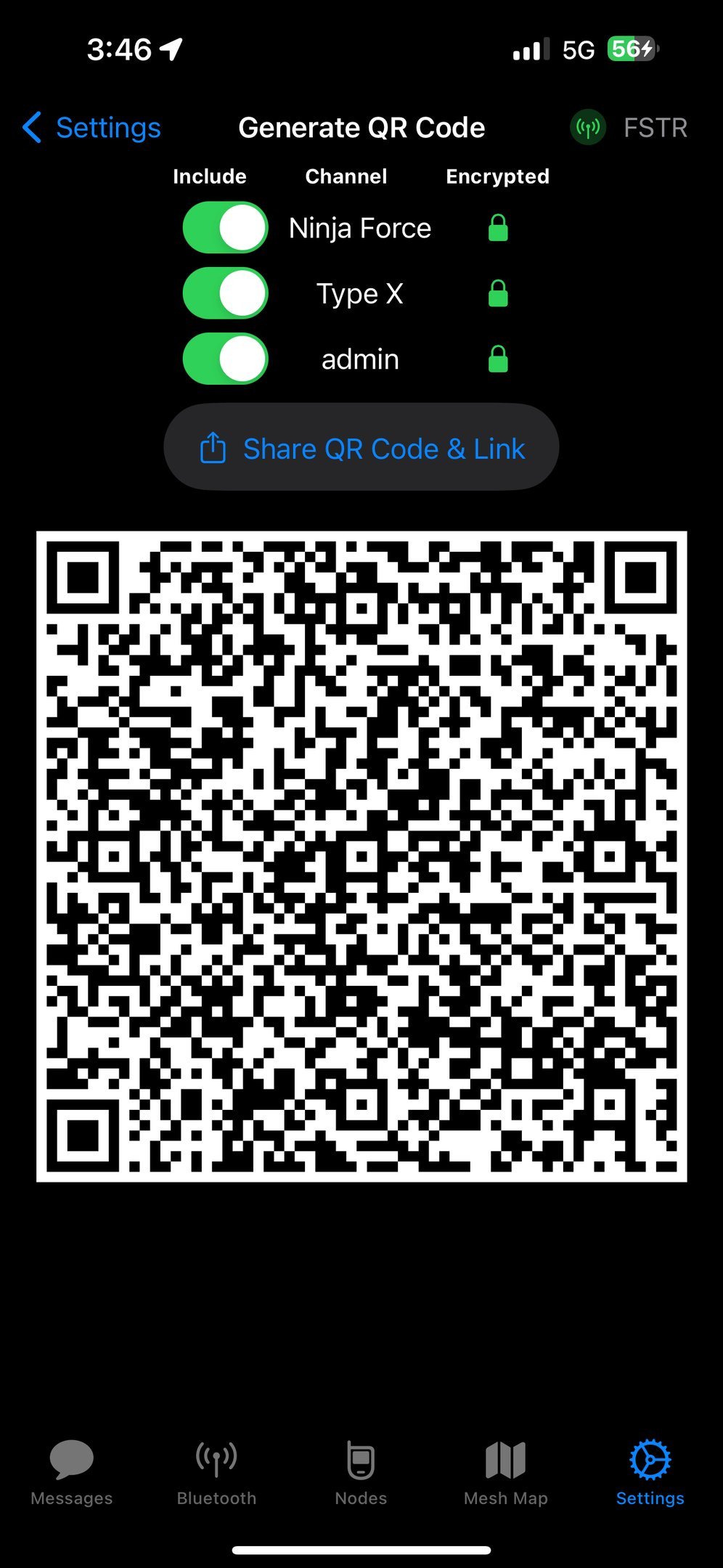
Channels are shared by selecting Settings -> Share Channels QR code
-
You can send the code/link, save it to a file share, or point a camera on another device connected to another node at the QR code on your phone.
-
This QR code and link file has your crypto keys in it – don’t share/store unwisely.
-
You can print the QR codes off on slips of paper and store with your radios if you need to rotate keys.
Setting the Hopset
-
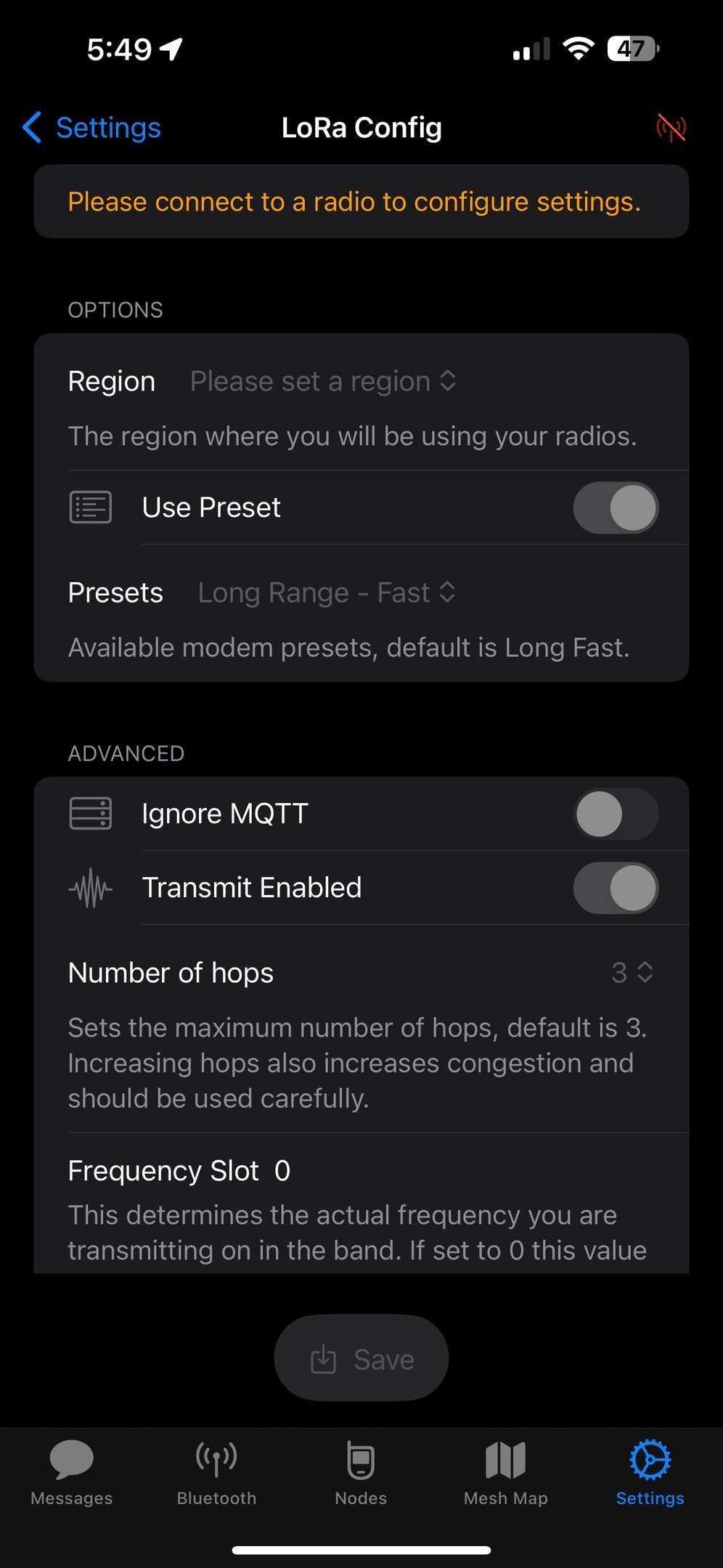
If you want to talk to other users that have a different Primary Channel name, you both need to be on the same Hopset.
-
On Apple, go to Settings – LoRa
-
Change your Frequency Slot to match the other radio networks’ hopset. This will allow communication.
Using GPS
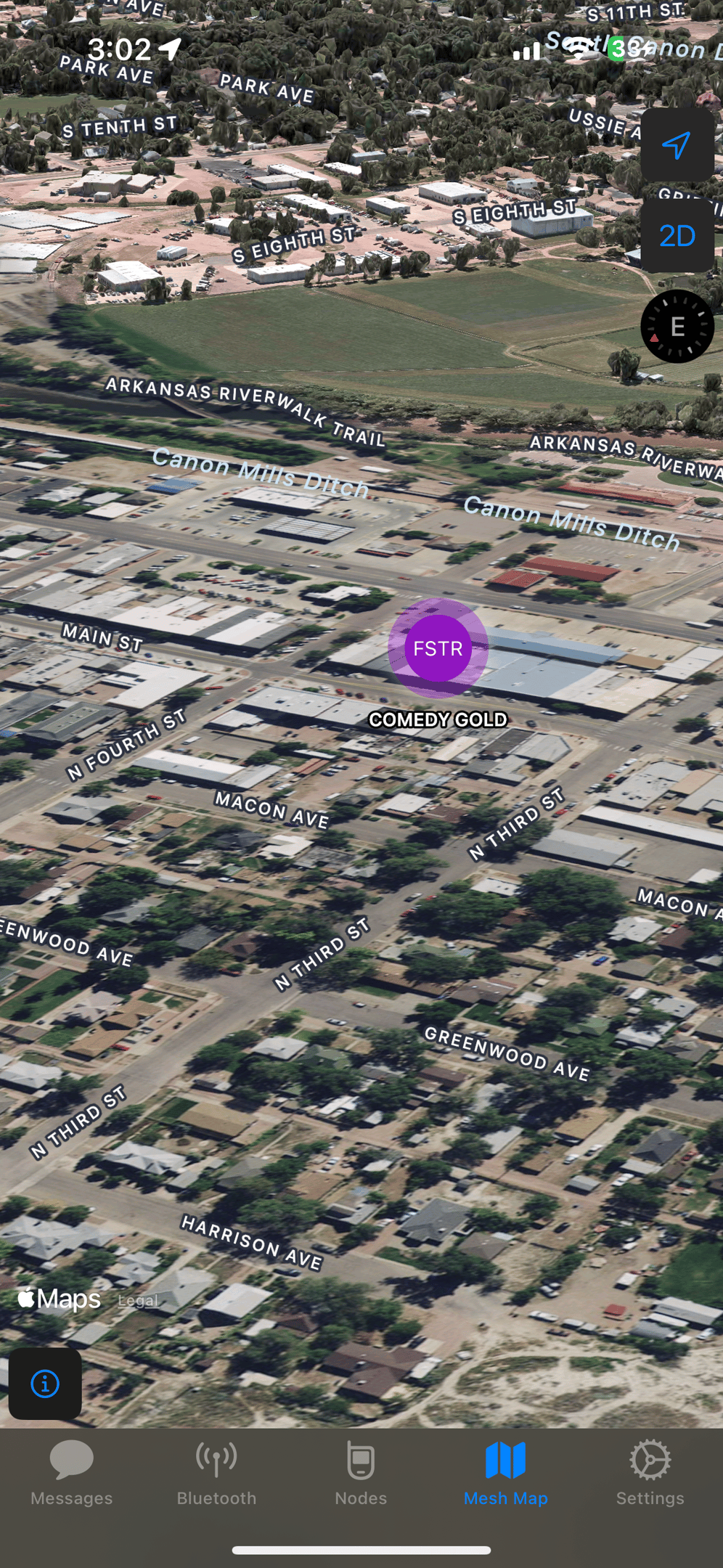
Using GPS
There is some theory needed when using GPS on the Mesh.
First of all, GPS is only transmitted on the Primary Channel when the following conditions are met:
-
Everyone else has the same Primary Channel and crypto key.
-
Location is enabled.
-
GPS is enabled on the Device OR GPS is enabled on your Phone/Tablet
-
Your Phone/Tablet supports GPS onboard
-
Your Phone/Tablet is connected to the device if you aren’t using the onboard GPS.
-
Whew!
Turn on Phone Location
-
Go to Settings
-
App Settings
-
Share Location = On
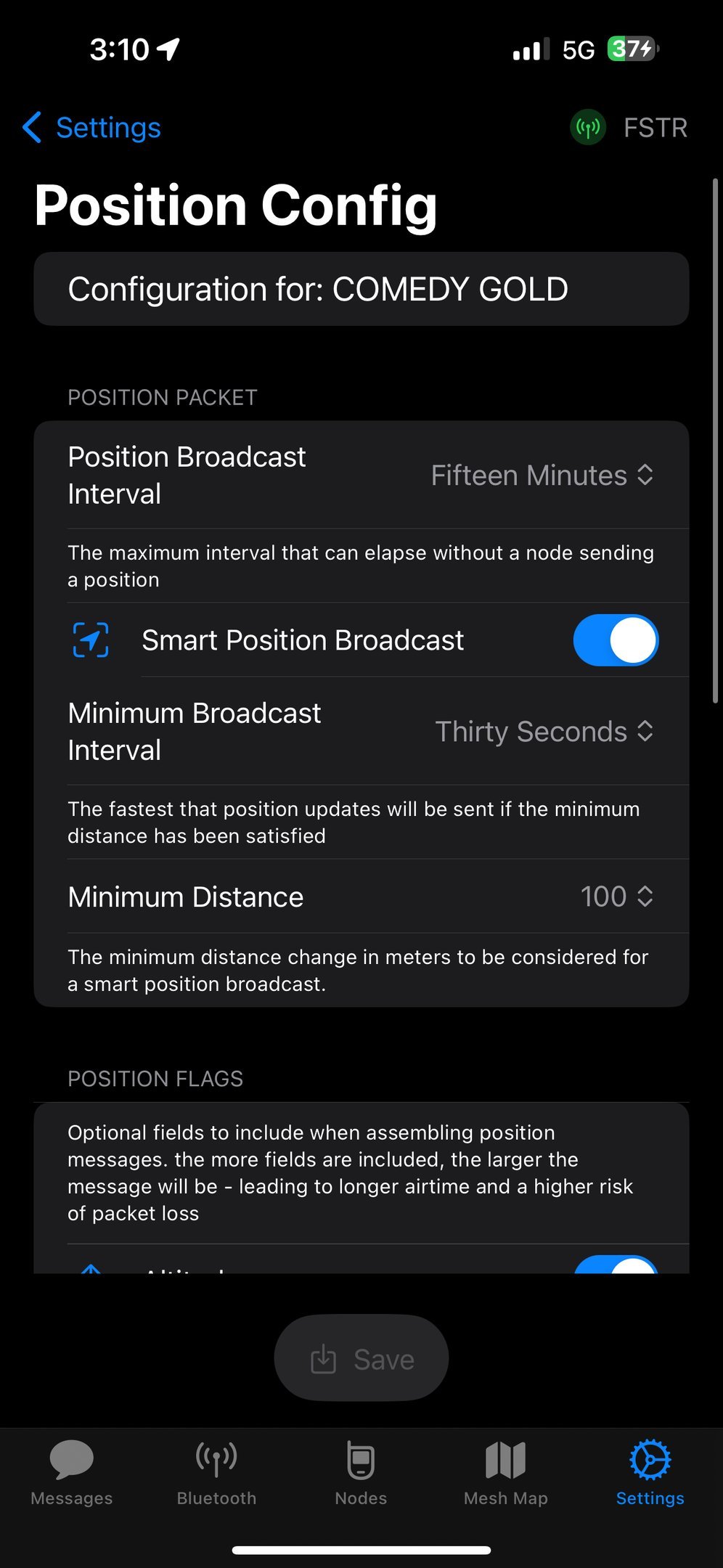
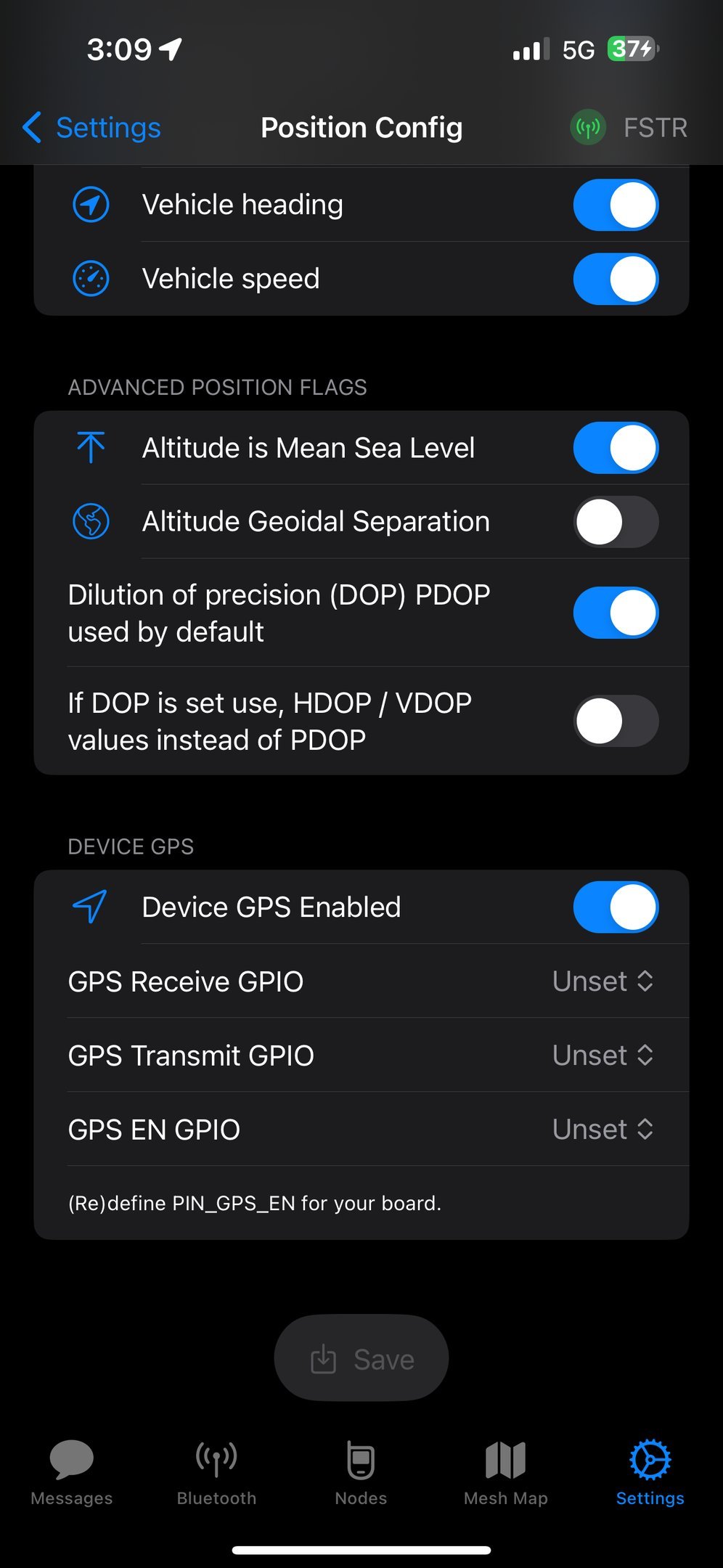
Turn on Device Location Sharing
-
Go to Settings – > Position
-
You can increase position interval, but its not recommended. It will increase battery usage and channel usage.
-
Instead, use Smart Position broadcast to tell other nodes only when you are moving. 10m is good for dismounted use and 30m is good for a vehicle.
-
If you have a device GPS, you can turn it on at the bottom of this screen. If primarily hooked to a device with GPS, turn this off to save battery.
-
Click Save
-
The radio will reboot.
Go Check out the Map
-
Click on Node Map
-
You can turn tracks on and off
-
The map is better if you have the ability to download sat views and such.
How Do I Update the Firmware?
The latest version of these instructions are here.
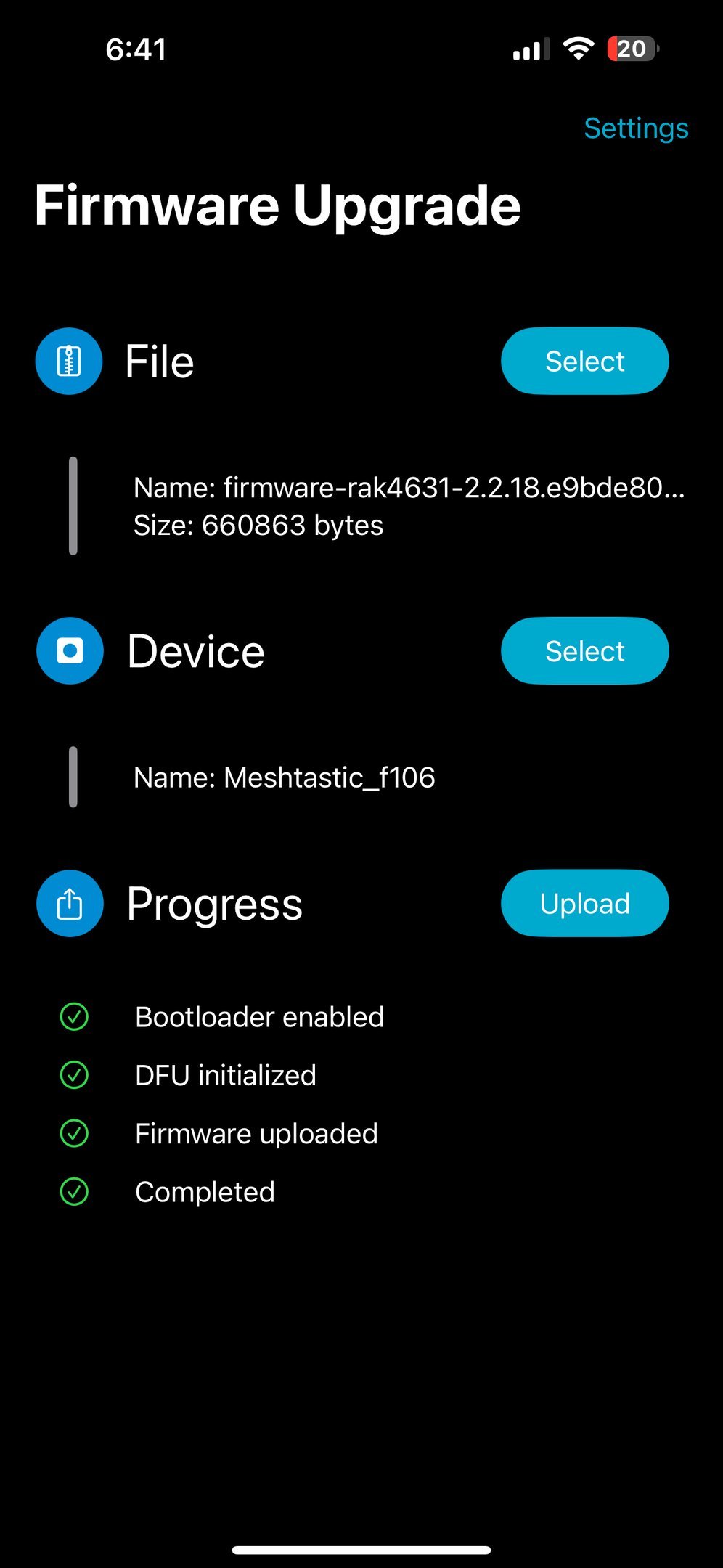
You will need the Nordic NRF Device Firmware Update tool.
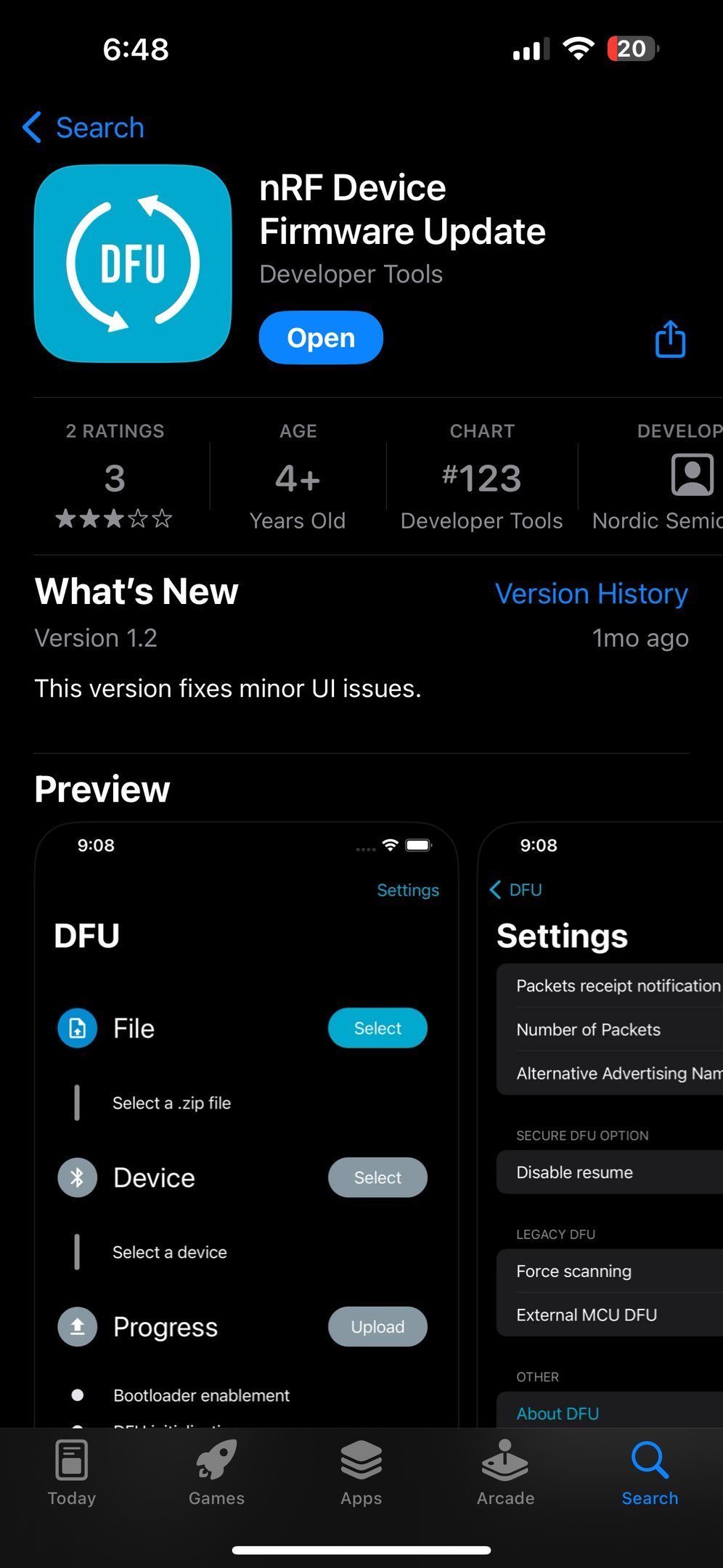
Install this software from the Apple App Store and then download the Meshtastic Firmware at meshtastic.org/downloads
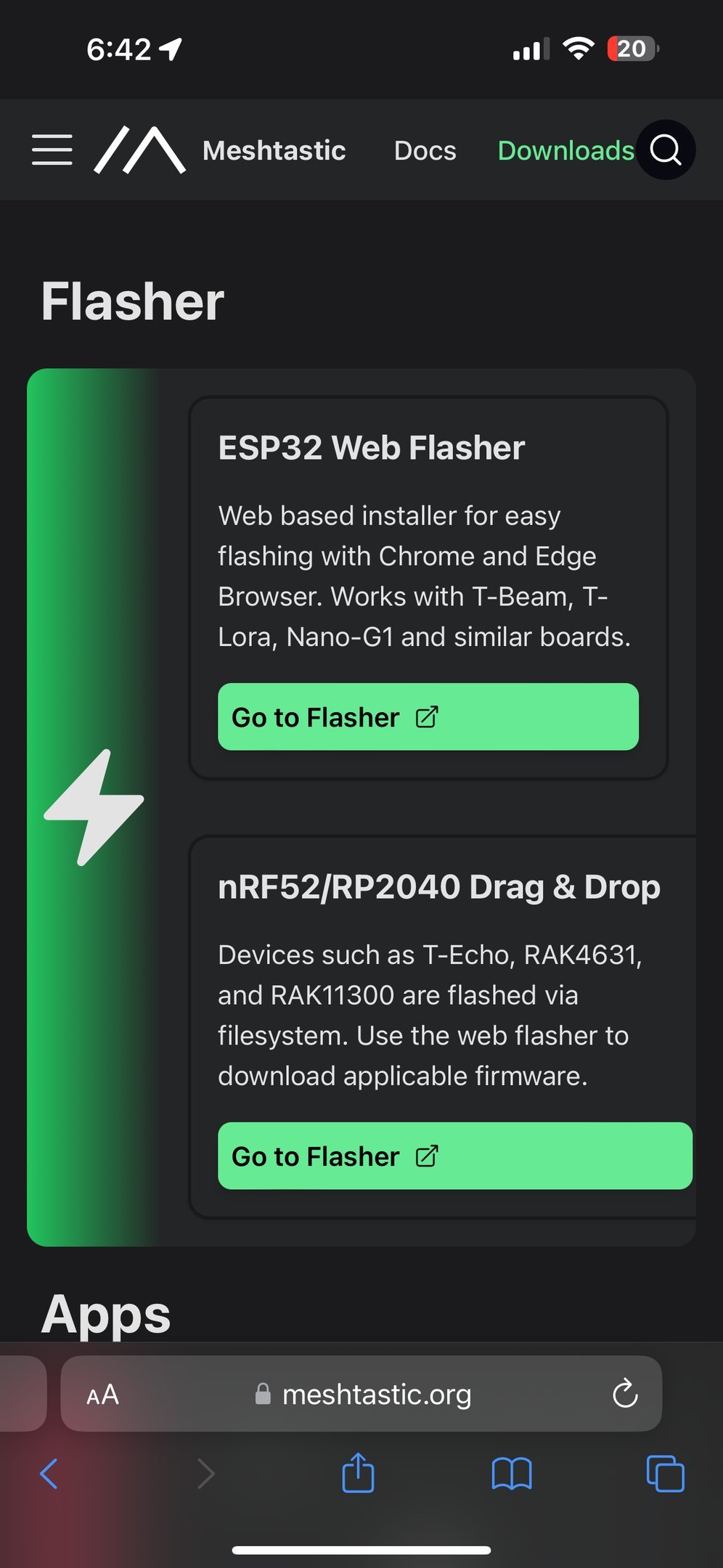
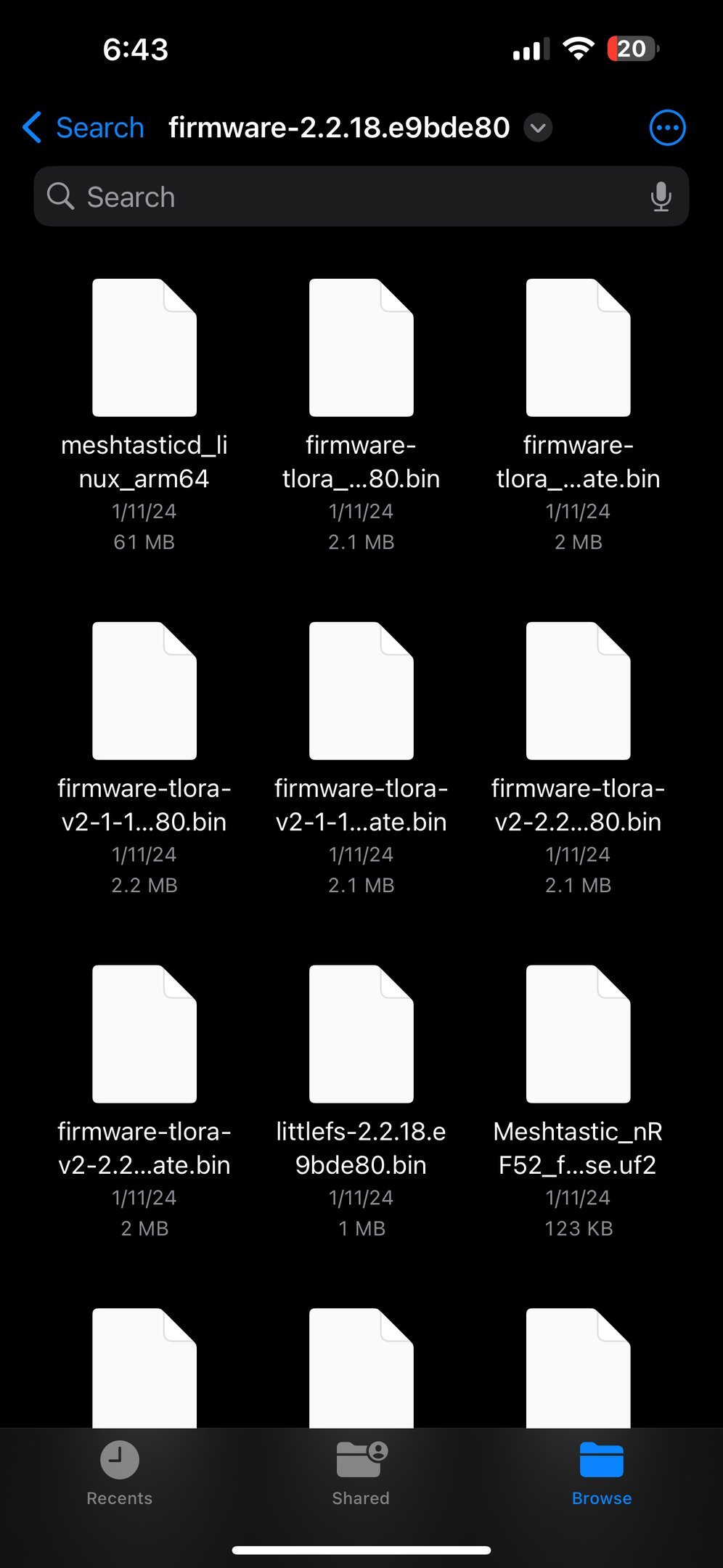
After you have downloaded the software, open the zip file using the “Files” app on your Apple device.
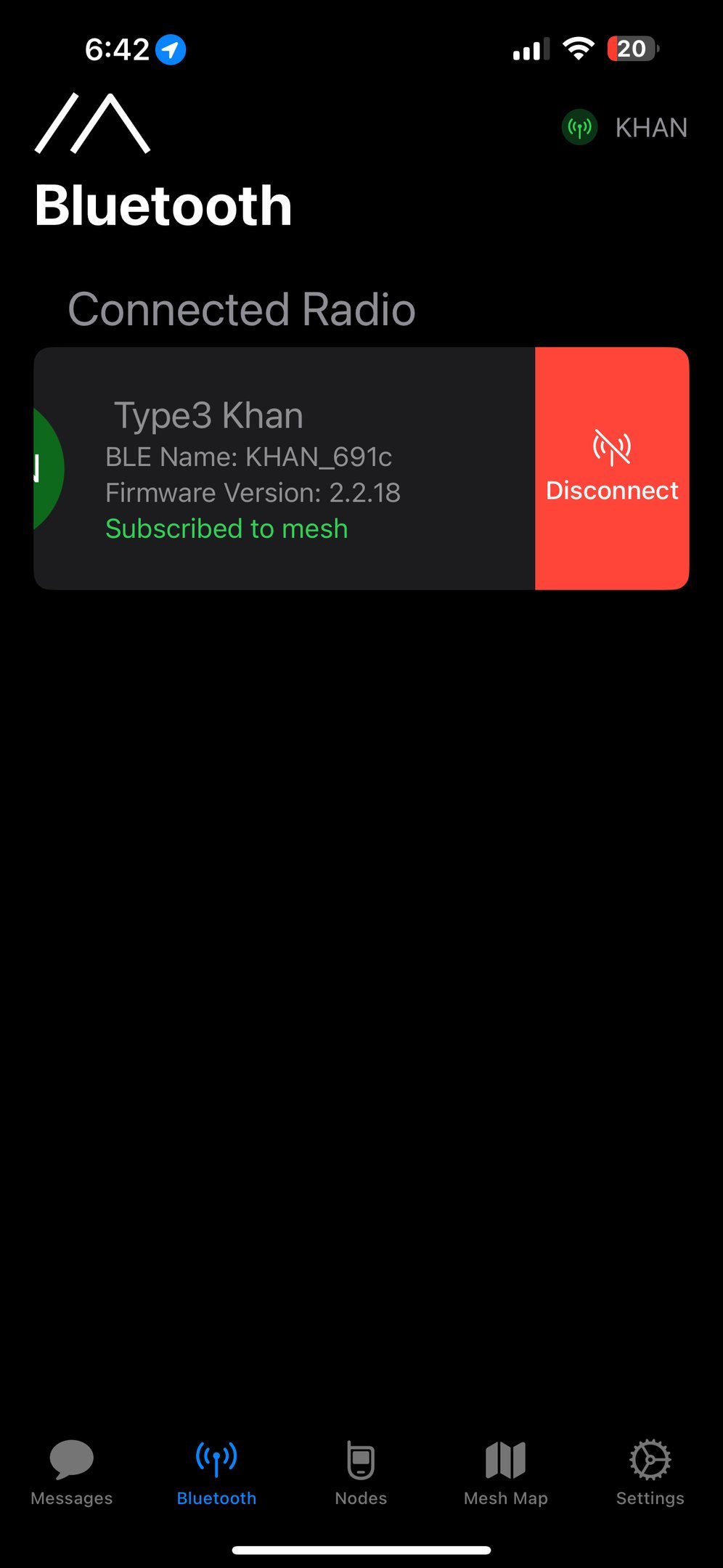
If you are connected to the device in the Meshtastic app, swipe left to disconnect that ugly chick.
Select the RAK4631 firmware from the list, and your device. Then click “GO!” Once everything greens up, you should be good to go. Don’t leave the app, take a phone call, jump out of the plane with your phone but without your radio (Jon…).