Considerations
When setting up your Mesh, its important to follow a few guidelines.
-
Node announcements happen on the Primary Channel. So you can’t DM someone you don’t have on your Primary Channel.
-
Location is shared on your Primary Channel.
-
All the cool stuff = Primary Channel….BUT
-
Secondary channels let you talk to other groups of people.
-
The radio comes with a secondary channel that is shared among all TypeX users if you choose not to delete it.
The Primary Channel
This is the channel for your company/family/group.
-
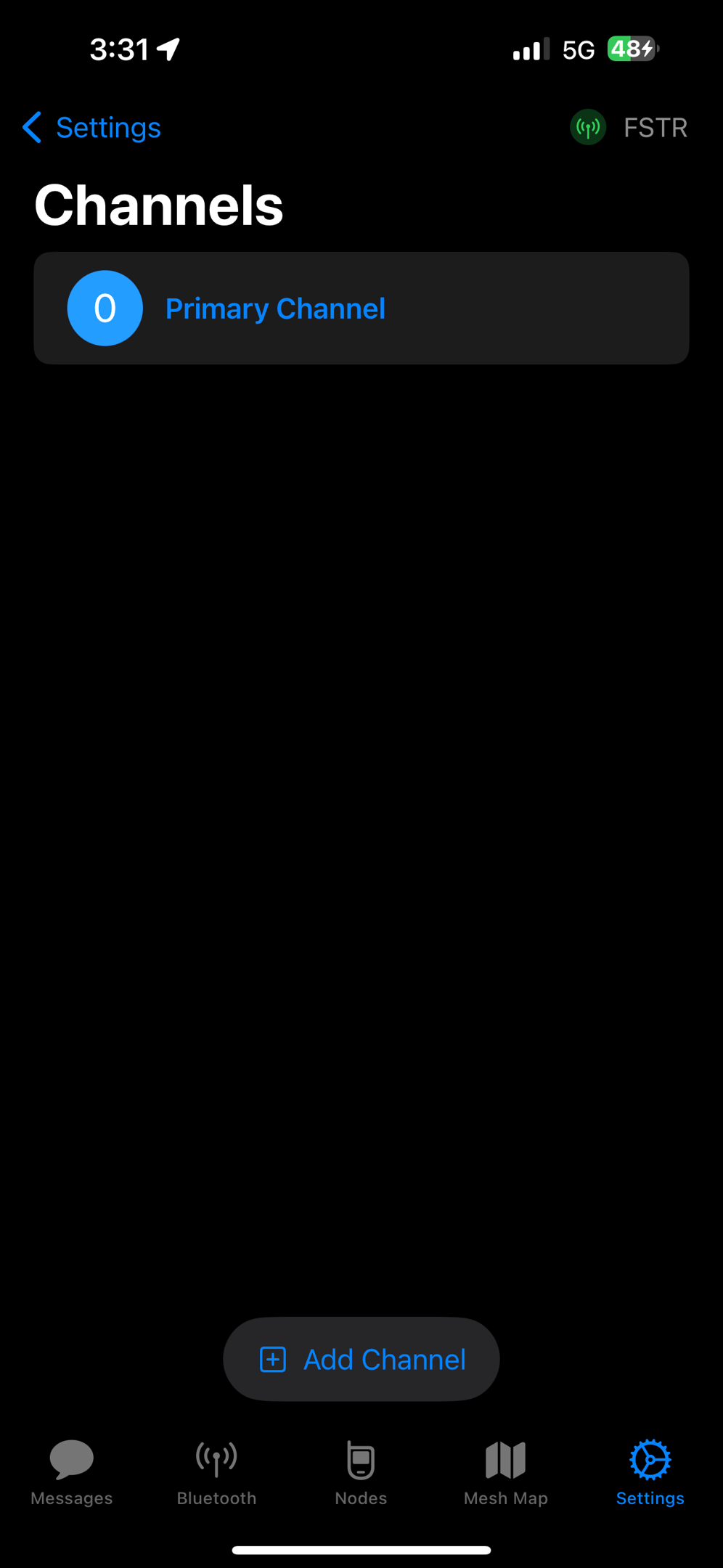
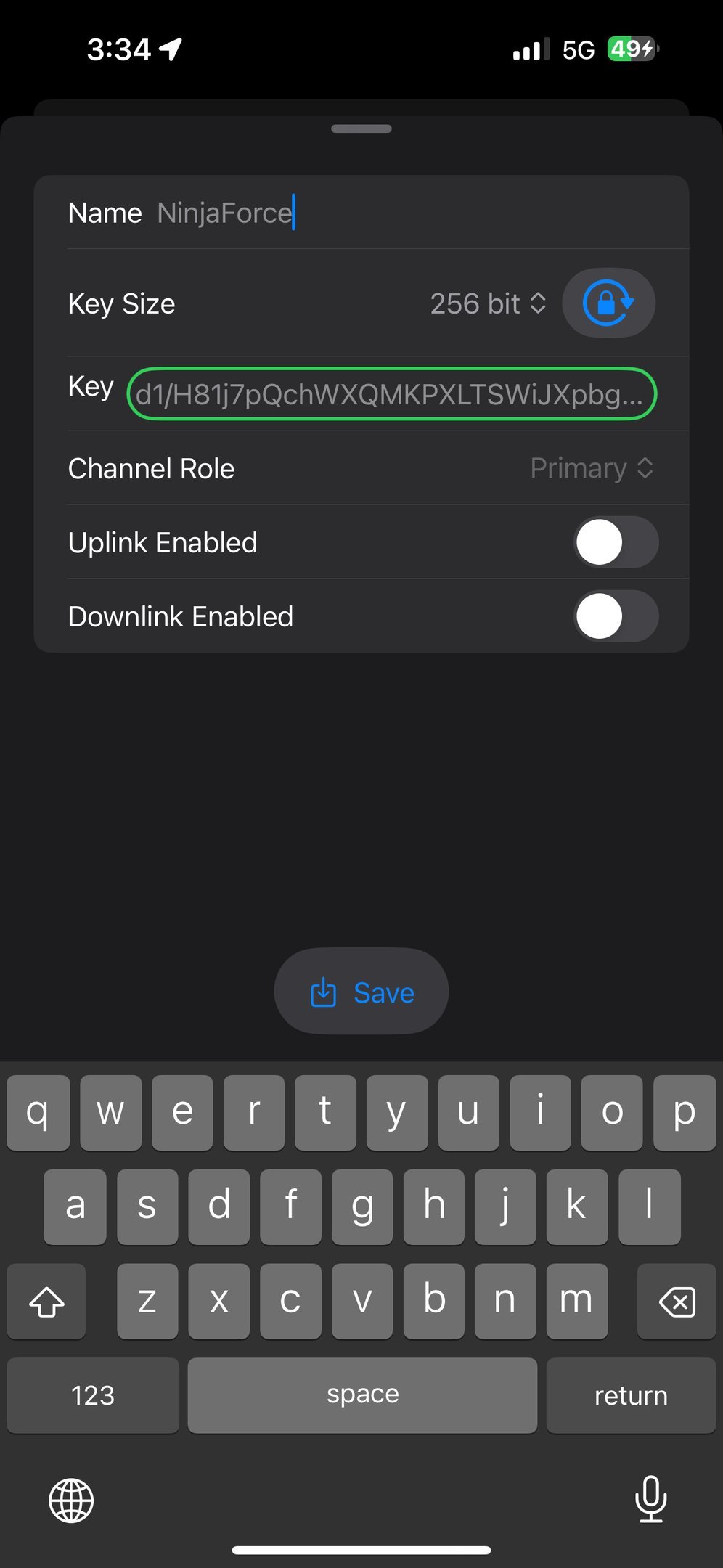
Settings -> Channels
-
Set Key Size to 256 bit
-
Click the Key Refresh Lock
-
Save
Secondary Channels
-
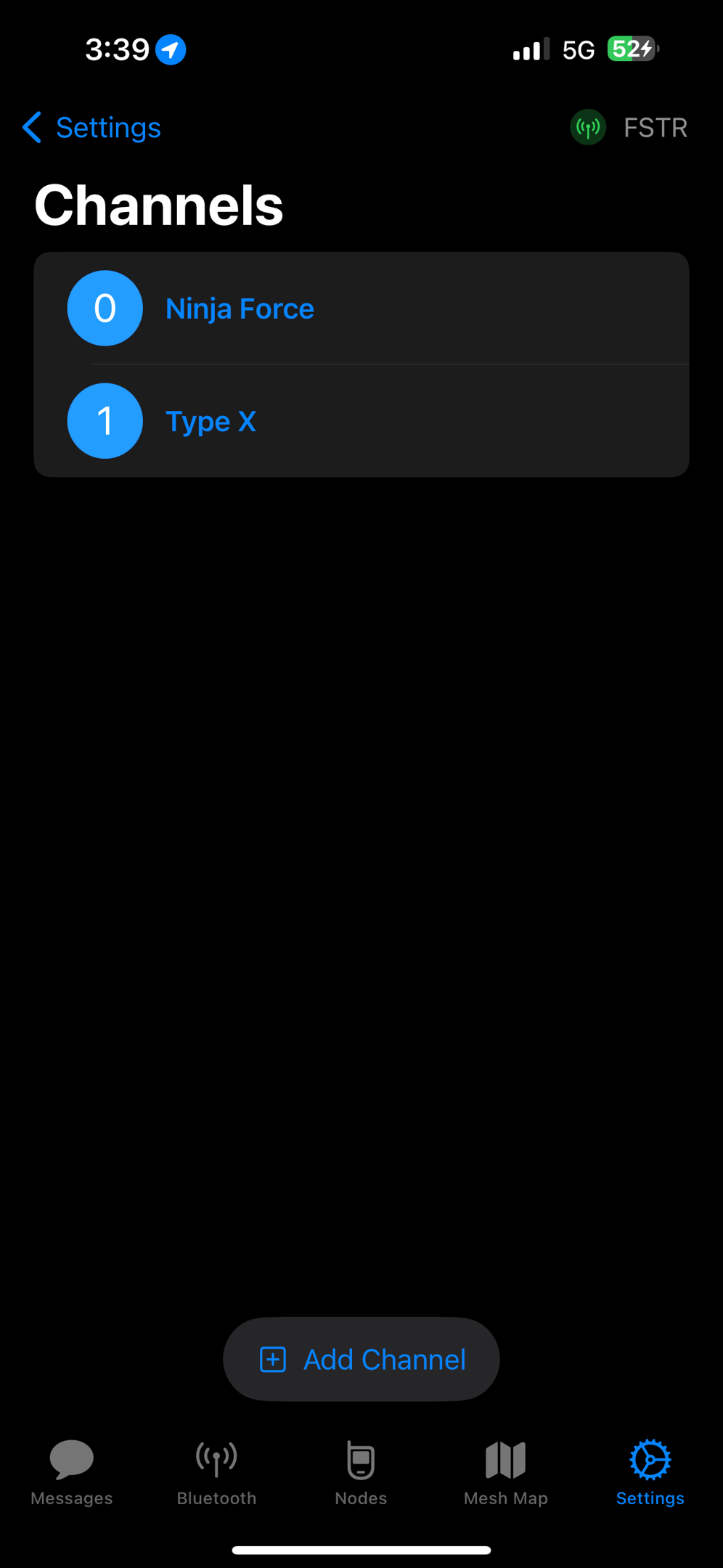
Same process, but select Secondary.
-
If you want to configure the TypeX Users channel, its name is TypeX. Its key is: LSkRrUoisSk8dvtPQGRDqi2PohPz5ttTyyl/qmgjovQ=
The Admin Channel
-
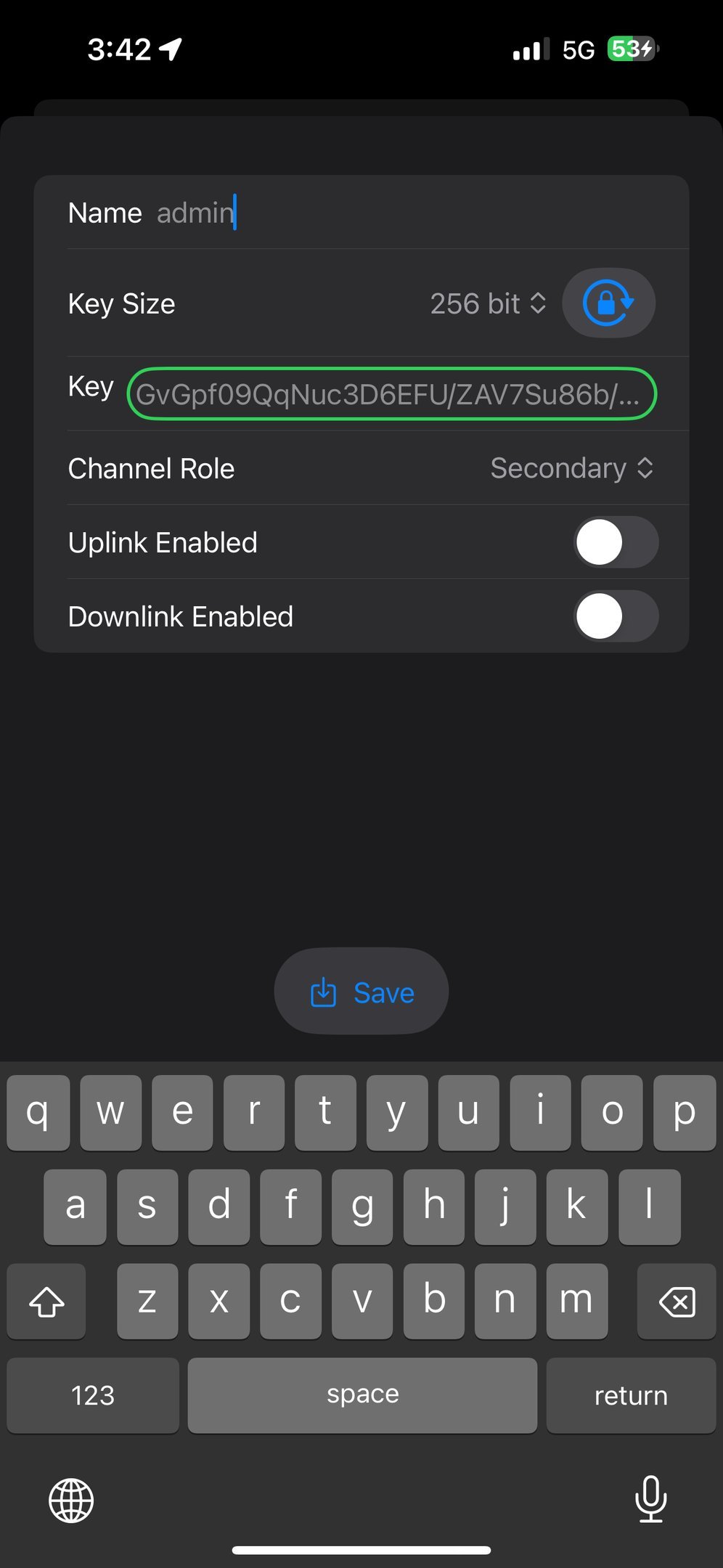
You can also configure an encrypted channel called “admin”.
-
If this channel is configured, you can administer other nodes that have the same channel and crypto key.
-
This can be very useful for changing settings on distant repeaters and on units you want to change in the field.
-
More admin features are released every day.
Sharing Channels
-
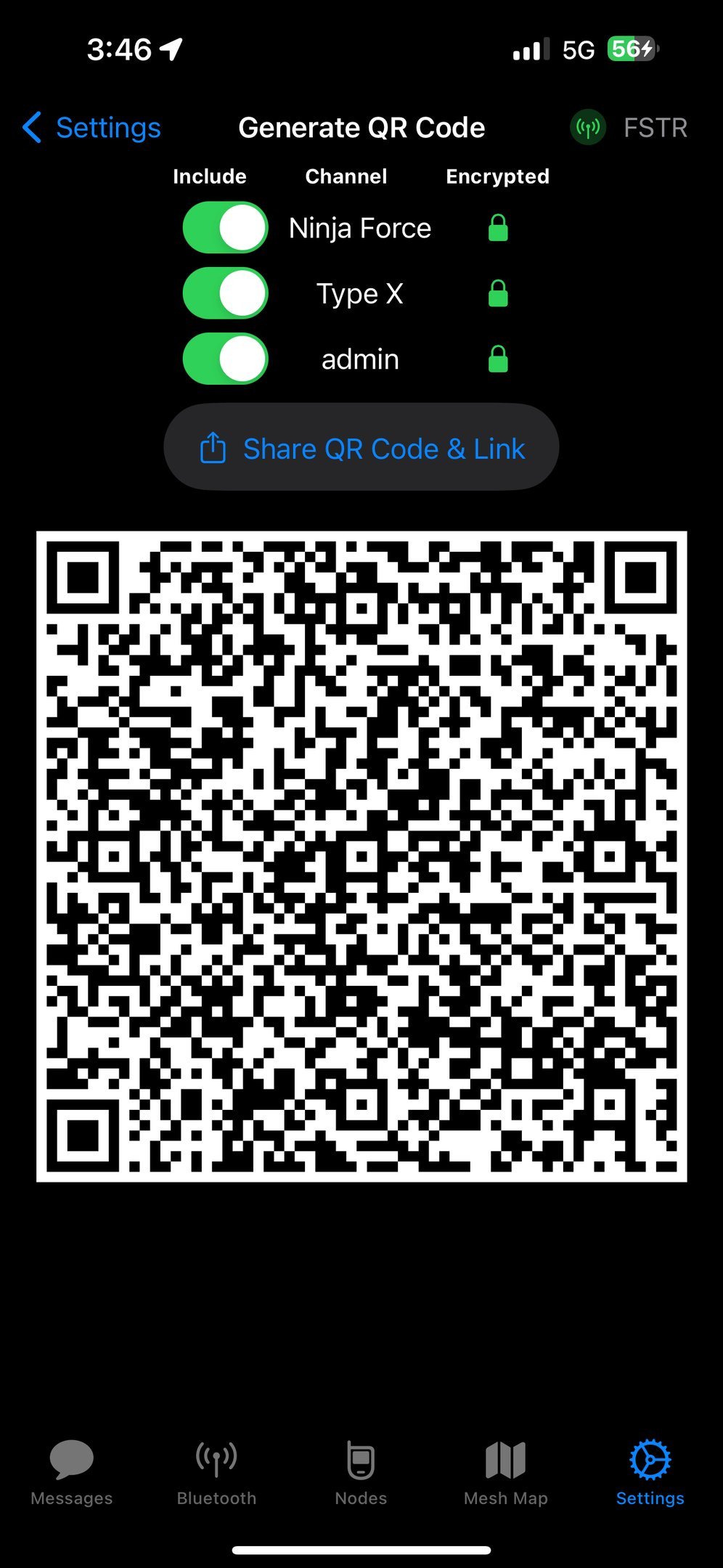
Channels are shared by selecting Settings -> Share Channels QR code
-
You can send the code/link, save it to a file share, or point a camera on another device connected to another node at the QR code on your phone.
-
This QR code and link file has your crypto keys in it – don’t share/store unwisely.
-
You can print the QR codes off on slips of paper and store with your radios if you need to rotate keys.
Setting the Hopset
-
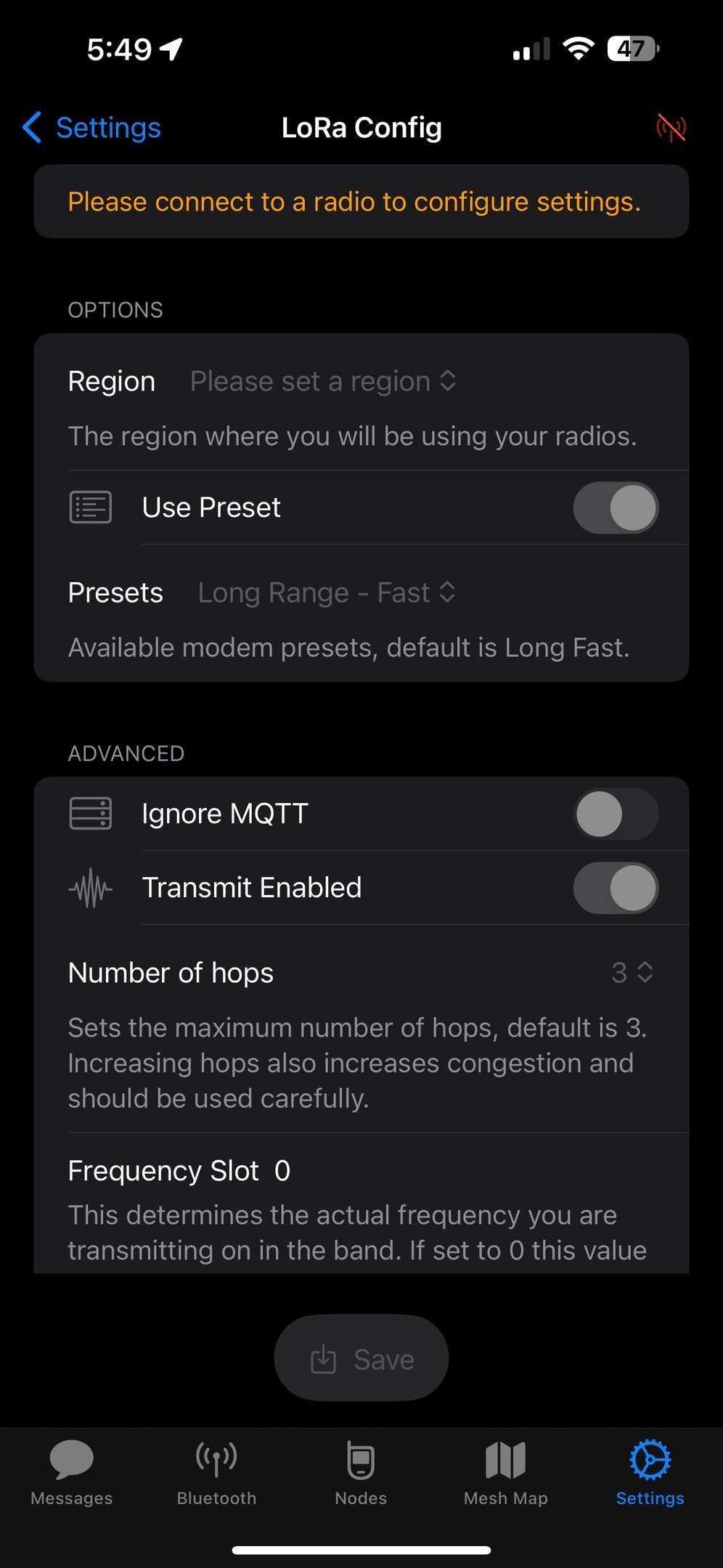
If you want to talk to other users that have a different Primary Channel name, you both need to be on the same Hopset.
-
On Apple, go to Settings – LoRa
-
Change your Frequency Slot to match the other radio networks’ hopset. This will allow communication.